Screen reader testing for online stores: a practical NVDA and VoiceOver routine
Automated scans catch missing alt text and unlabeled fields. They can't tell you whether a blind shopper can actually buy something. Screen reader testing can, and one pass through a store takes about an hour the first time.
Screen reader testing means using your store the way a blind customer does: listening to each heading, button and form field as the software announces it, and trying to complete a purchase without looking. A keyboard test tells you whether everything can be operated. A screen reader test tells you whether it makes sense when it is operated: what a button is called, which size is selected, and whether adding to cart worked. In WCAG terms that's mostly 4.1.2 (Name, Role, Value), 1.3.1 (Info and Relationships) and 4.1.3 (Status Messages).
Which screen readers to test with
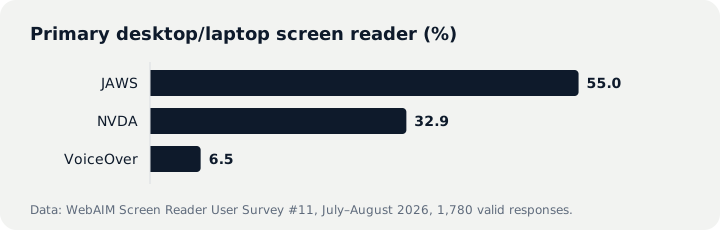
WebAIM ran its 11th Screen Reader User Survey in July and August 2026 and received 1,780 valid responses. As a primary desktop or laptop screen reader, 55.0% use JAWS, 32.9% NVDA and 6.5% VoiceOver. On mobile, 72.2% commonly use VoiceOver on iOS and 29.5% TalkBack on Android, and 91.8% of respondents use a screen reader on a mobile device at all.
For an e-commerce team, a practical test matrix looks like this:
- NVDA with Chrome on Windows. NVDA is, in NV Access's words, "completely free for anyone to use", and NVDA with Chrome is the second most common pairing in the survey. It's the closest free stand-in for the JAWS majority.
- VoiceOver with Safari on iPhone. Nearly all respondents also use a screen reader on a phone, and most of them are on iOS.
- VoiceOver on Mac for quick checks during development, as long as it doesn't replace the first two.
Buy a JAWS licence only if a complaint or demand letter names it and you need to reproduce the exact issue.
How to use a screen reader for accessibility testing
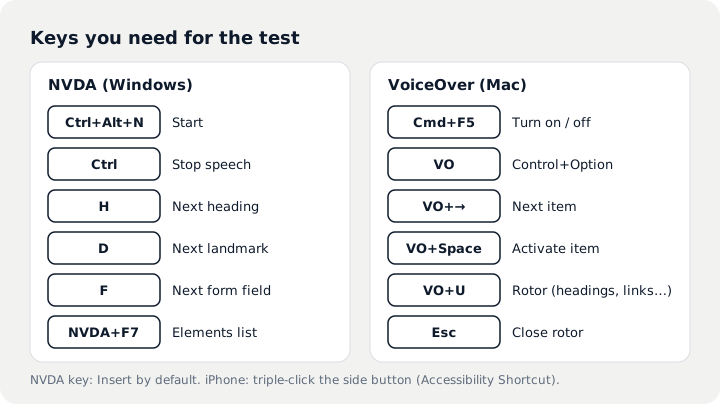
NVDA. Install it from NV Access and press Ctrl+Alt+N to start it. The NVDA key is Insert by default, so "NVDA+F7" means hold Insert and press F7. Press Ctrl at any time to stop speech. On web pages NVDA works in browse mode, where single letters jump between elements: H for headings, D for landmarks, F for form fields, K for links, T for tables.
VoiceOver on Mac. Press Command-F5. The VoiceOver modifier (VO) is Control-Option, or Caps Lock. VO plus the arrow keys moves item by item, VO-Space activates the current item, and VO-U opens the rotor, where the left and right arrows switch between lists of headings, links and form controls.
VoiceOver on iPhone. Ask Siri to turn on VoiceOver, or triple-click the side button once VoiceOver is set as the Accessibility Shortcut. Gestures change completely while it's on, so spend five minutes in VoiceOver Practice before you open your store.
The purchase flow, step by step
- Headings on the home page. Press H in NVDA, or pick Headings in the VoiceOver rotor. In the survey, 67.8% of users say navigating by headings is their first move on a long page. You should hear one heading that names the page, and section names should be real headings, not bold paragraphs.
- Landmarks. Press D in NVDA to move between header, navigation, main content and footer. Without a main landmark, users have to listen through the whole menu on every page.
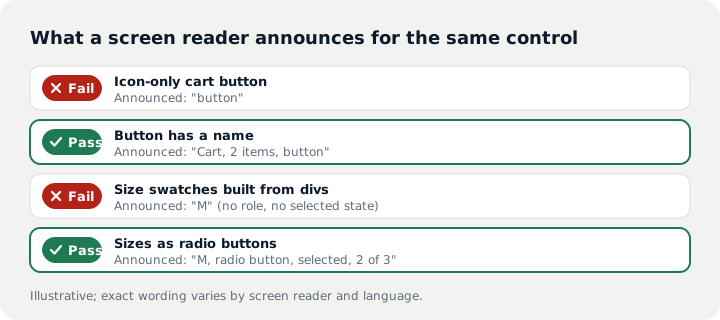
- Icons and images. Tab through the header. Cart, search and account icons should announce as "Cart, button", not just "button". Product photos should be described; decorative images should be skipped entirely.
- Product options. Colour and size choices need a name, a role and a state. Swatches built from plain divs are a frequent failure: the screen reader says "M" and nothing tells the user whether it's selectable or selected.
- Add to cart. After activating the button you should hear a confirmation, or focus should move into the cart drawer. If nothing is announced, the shopper is left guessing.
- Forms and checkout. Press F in NVDA to step through fields. Every input should announce its label. Submit once with a required field empty and check that the error is announced and says what to fix.
NVDA+F7 opens the elements list with every link, heading and form field on the page. A column of "Learn more" and "Click here" links means the link text doesn't work out of context.
Common findings and fixes
| What you hear | Usual cause | Fix |
|---|---|---|
| Just "button" or "link" | Icon with no text | Add an aria-label or visually hidden text |
| A file name | Image has no alt attribute | Describe product images; use alt="" for decoration |
| No selected state on options | Swatches built from div or span | Use radio inputs, or add the role and aria-checked |
| Silence after add to cart | Only the cart count changes | Announce via a role="status" region, or move focus to the drawer |
| "Edit text" with no name | Placeholder used as the label | Give every input a visible label |
| H finds no sections | Bold text instead of headings | Use h2 and h3 without skipping levels |
Nearly all of these live in the theme or in third-party apps, so one fix usually covers the whole site. For product image descriptions at scale, see writing alt text for product images; for the full list of checks, the WCAG 2.1 AA checklist. An overlay widget won't name your icon buttons or rebuild your swatches; the overlays guide explains why.
Making it part of release checks
- Repeat the six steps after a theme change, a new app install or a product template edit.
- Log the page, the step, what you heard and what you expected to hear, so developers can reproduce it.
- Run a free automated scan first and fix what it finds, so manual testing is spent on what only a person can judge.
- When a customer reports a problem, reproduce it with the screen reader and browser they named.
Questions
What is the best screen reader for accessibility testing?
There isn't a single one. JAWS is the most used desktop screen reader in WebAIM's 2026 survey (55.0%), but it is paid. Most teams test with NVDA and Chrome on Windows, which is free, plus VoiceOver on iPhone, which covers most mobile screen reader users.
Can automated tools replace screen reader testing?
No. Scanners find missing labels and alt text, but they can't judge whether a button name makes sense, whether a selected size is announced, or whether 'added to cart' is ever spoken. Run a scan first, then test the purchase flow by ear.
Is testing on a Mac with VoiceOver enough?
It's a good start for everyday checks, but only 6.5% of respondents use VoiceOver as their main desktop screen reader. Test the key flows with NVDA on Windows as well, even if that means a virtual machine.
Sources
- WebAIM: Screen Reader User Survey #11 Results (July–August 2026)
- NV Access: NVDA User Guide
- Apple: Get started with VoiceOver on Mac
- Apple: Turn on and practice VoiceOver on iPhone
- W3C: Web Content Accessibility Guidelines (WCAG) 2.2
This article summarises technical requirements and public data. It is not legal advice; for legal obligations and lawsuits, consult a qualified attorney.